Hey Home Assistant power users and Astrion community members!
The feature you’ve all been waiting for is finally here in next firmware update:
UI Page Automation Control via Home Assistant!
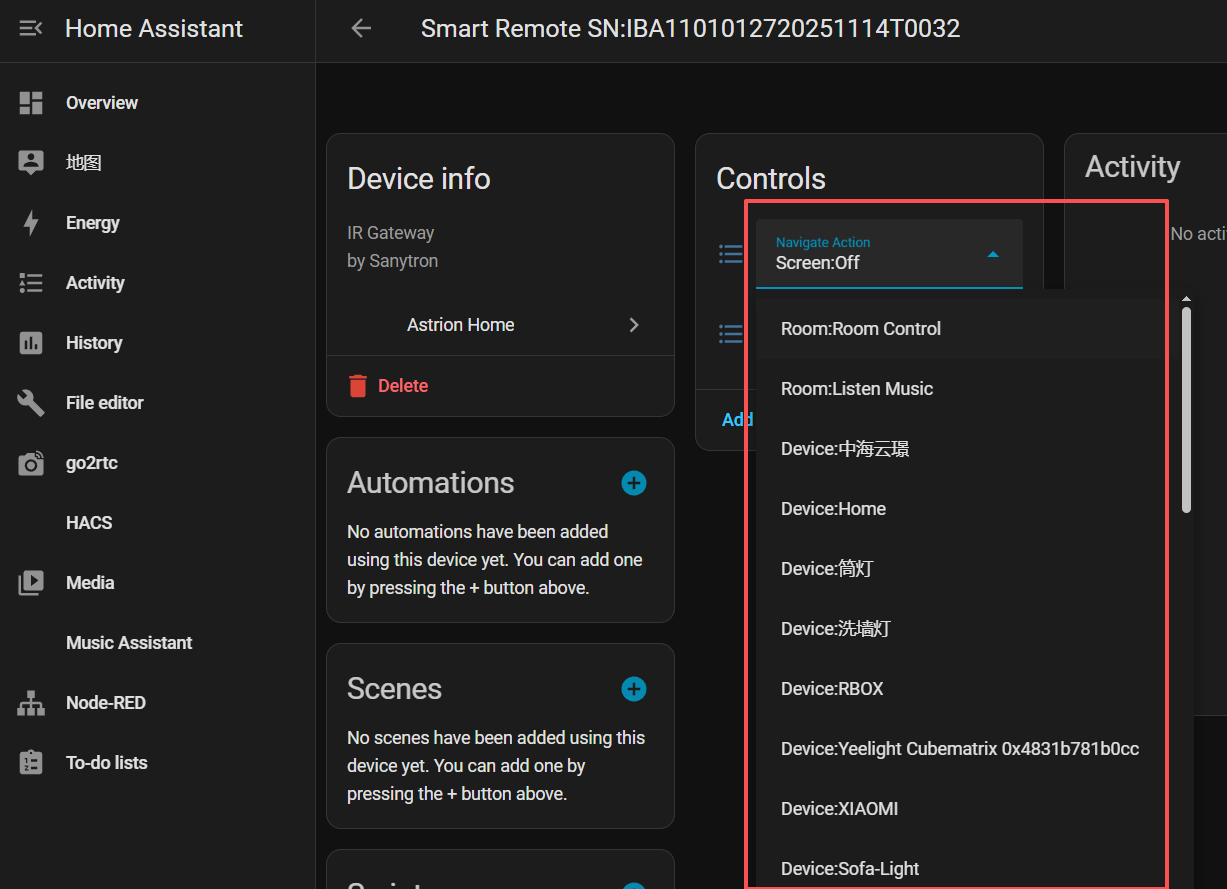
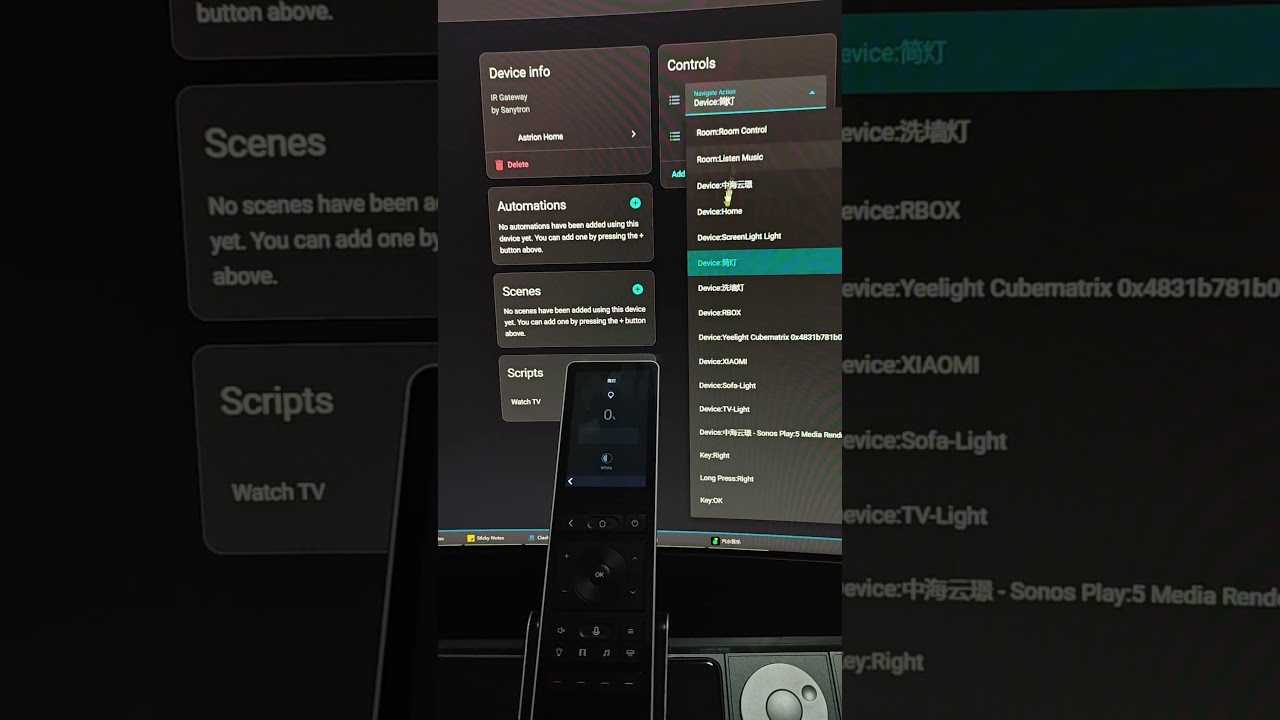
In the past, the Astrion Smart Remote acted primarily as a “passive” terminal—waiting for your physical button presses or touch gestures to execute commands. But with this game-changing update, Astrion’s active UI page is now exposed to Home Assistant as a standard select entity (e.g., select.astrion_smart_remote_page).
What does this mean? It means your physical environment and your remote’s UI context are now fully bridged! Your remote is no longer a static screen; it can now adapt dynamically and “mind-read” your current needs through backend automations.
To help you get the absolute most out of this feature, we have mapped out 5 highly practical, proactive interactive use cases that you can configure right now!
Recommendation: 5 “Mind-Reading” UI Automation Use Cases
Case 1: Media Sync ------ Seamless UI Switching for “Movie Mode”
User Pain Point: When you trigger a “Movie Night” scene, the living room lights dim, but you are left awkwardly scrolling through the remote’s screen in the dark, trying to find your Media Player card to adjust the volume or browse playlists.
Automation Logic:
Trigger: The living room TV/projector turns on, OR the HA “Movie Scene” is activated.
Action: Living room lights turn off ➔ Blinds close ➔ Call the service to automatically switch the Astrion remote page to Media_Card.
User Experience: The moment you put down your light switch, you glance down and your remote has already transformed into a dedicated “Media Flywheel Panel.” You can instantly blind-control the volume and playback progress.
Case 2: Active Defense ------ Forced UI Overlay for Security Alerts
User Pain Point: You are watching TV in the living room, and someone approaches your porch or backyard. Your phone is on silent or in another room, preventing you from noticing the potential threat immediately.
Automation Logic:
Trigger: Perimeter Motion Sensors (PIR) detect movement at night, OR the smart doorbell is pressed.
Action: Trigger a subtle chime on your smart speakers ➔ Call the service to force-switch the Astrion remote page to Monitor_Card (Live Camera Stream View).
User Experience: The remote screen wakes up instantly and locks onto the live camera feed. You can see who is at the door right from your hand without scrambling for your phone, keeping your home security completely within reach.
Case 3: Midnight Care ------ Time-Based Adaptive “Night Light” UI
User Pain Point: When you wake up in the middle of the night and grab the remote to turn on a path light, the high-brightness screen defaults to your daytime dashboard. It blinds your eyes and causes accidental touches on complex buttons.
Automation Logic:
Trigger: Between 1:00 AM and 5:00 AM, the remote’s built-in accelerometer detects it being picked up (or a bedside motion sensor is triggered).
Action: Call the service to dim the Astrion remote brightness to 20% ➔ Simultaneously switch the active page to Night_Light_Card (a minimalist, low-color-temperature layout with just a night-light toggle).
User Experience: Grab the remote in the dark, and it greets you with a soft, low-glare screen displaying a giant “Night Light” button. One tap and you’re done, without ruining your sleepiness. (Similarly, picking it up at 7:00 AM can auto-switch to your “Weather & Blinds” dashboard).
Case 4: Docked Status ------ Transforming into a Desktop Dashboard
User Pain Point: When the remote is placed back onto its magnetic charging dock, its beautiful display goes to waste, and it’s not convenient to check your smart home’s overview while sitting across the desk.
Automation Logic:
Trigger: The remote’s battery state changes to “Charging”.
Action: Call the service to switch the Astrion remote page to Overview_Dashboard (a dedicated glances view showing a large clock, indoor temperature, and air quality index).
User Experience: The instant you dock the remote, it effortlessly transforms into an elegant desktop ambient clock and information center, maximizing your hardware asset’s utility even when idle.
Case 5: Find My Remote ------ Anti-Lost Diagnostic Dashboard
User Pain Point: The remote is lost somewhere in the couch cushions. While you can trigger the HA buzzer service to make it beep, when you finally find it, you still have to navigate manually to see if it’s low on battery or experiencing network drops.
Automation Logic:
Trigger: You tap “Find My Remote” on your HA companion app, OR you ask Siri/Alexa, “Find my remote.”
Action: Trigger the Astrion hardware buzzer (beeping sound) ➔ Call the service to force-switch the Astrion page to Device_Status_Card (Device Status & Battery Diagnostic View) with screen backlight flashing.
User Experience: Following the beeping sound, you pull the remote out from the couch. The screen is flashing a warm notification: “I am here! Battery: 85%, Wi-Fi Signal: Excellent.” It’s incredibly rewarding for smart home geeks.
Thank you for testing the new UI Page Automation feature and for providing such detailed feedback on your setup!
The reason you are currently seeing “Unknown” for the Navigate Action is that this feature requires a firmware update that has not been publicly released yet. To enable this functionality, your Astrion firmware/software needs to be upgraded from v1.2.0.1 to the internal beta version (v1.3.0).
Since this is currently an invite-only internal test, you can unlock and download the update by following these steps on your remote:
Go to the Settings menu on your Astrion remote.
Find the Version Number and long-press it.
Scroll down to reveal the invitation code entry field.
Enter the beta invitation code: 6106
Once the firmware upgrade to v1.3.0 is complete, the UI Page Automation controls should populate and function exactly as shown in the demo video.
Please give this a try and let us know if you encounter any other issues during your testing!
Quick update: I have now successfully installed the v1.3.0 beta update and the Navigate Action / Navigate Event controls are now appearing correctly as shown in the demo video.
I’m not completely sure whether this was caused by a rollout delay or user error on my part during the unlock/update process, but it is now functioning correctly.
That might be because you had previously upgraded to a certain gray release version—that’s likely the reason. I reported this to the R&D team yesterday, and they may have pushed an update since then.
Hi Tim
I’m also testing the new UI Page Automation and have come across an issue where my mapping of the physical power button no longer works
Beta Bug Report Details:
Firmware Version: v1.3 Beta
Integration Version: v1.3.0 Custom Integration
The Issue: When a physical card button on the remote is mapped to trigger a Home Assistant script, pressing the button successfully executes the script in Home Assistant, but the remote’s screen immediately displays the error: “The Target object of this button is unconfigured or non existent.”
Replication Steps: The error occurs even if the Home Assistant script contains basic media_player.turn_off actions and zero remote UI navigation commands, indicating a localized touch-handling loop error on the remote’s firmware when parsing script target confirmations.
If you need any further information please let me know
This is the current configuration that was working until I went to the
Hello, I’ve consulted our engineers about this issue. The problem is caused by the card not being the latest version. We have already released a new version, so we recommend that you update and try it again. We hope you enjoy using it!
This is great and a step in making this a usable remote, however could someone please provide some updated instructions? I’ve spent hours trying to work out why I can’t see the device as noted in the instructions and video above only to find that there is a new integration that needs to be installed. For anyone looking, the URL is GitHub - yyqclhy/Astrion-integration · GitHub
Another thing is that it appears that the current iteration requires the remote to be on the same subnet as Home Assistant as it uses a broadcast to discover it. That doesn’t work in my setup as my media devices are on a separate VLAN and subnet to my automation, though I have firewall rules allowing specific device access. In future updates, it would be great if this current limitation could be addressed. It should be easy enough to just be able to input the IP of the remote?
I apologize for the confusion. This test version has now been officially released, so you can follow the standard upgrade process instead of referring to the content here.
For the Astrion upgrade, please go to Settings About. For the Astrion Home (integration) and ROS Card, please update through the HACS store. The latest version for all of these is 1.3.0.
For update announcements, please refer to our version release post:
Regarding the network issue you mentioned, I have already raised it with our R&D team and logged it as a requirement. They will look into making adjustments in the future.
Finally, thank you very much for your feedback. If you have any other suggestions or comments, feel free to reach out. We hope you enjoy using the product!
Thanks. Aside from my point regarding the ability to define the remote by IP rather than broadcast discovery, my other point is that I’ve not seen any instruction or reference to installing the Astrion Home integration or the repository URL. Apologies if I’m mistaken and have missed it, but I looked pretty hard
I apologize — I didn’t fully understand your question earlier. I’m very sorry.
For the initial installation of the integration, the process is similar to the ROS card: you need to go to HACS, select “Custom repositories,” enter the integration URL below, and set the type to “Integration”:


 Recommendation: 5 “Mind-Reading” UI Automation Use Cases
 Case 1: Media Sync ------ Seamless UI Switching for “Movie Mode”
 Case 2: Active Defense ------ Forced UI Overlay for Security Alerts
 Case 3: Midnight Care ------ Time-Based Adaptive “Night Light” UI
 Case 4: Docked Status ------ Transforming into a Desktop Dashboard
 Case 5: Find My Remote ------ Anti-Lost Diagnostic Dashboard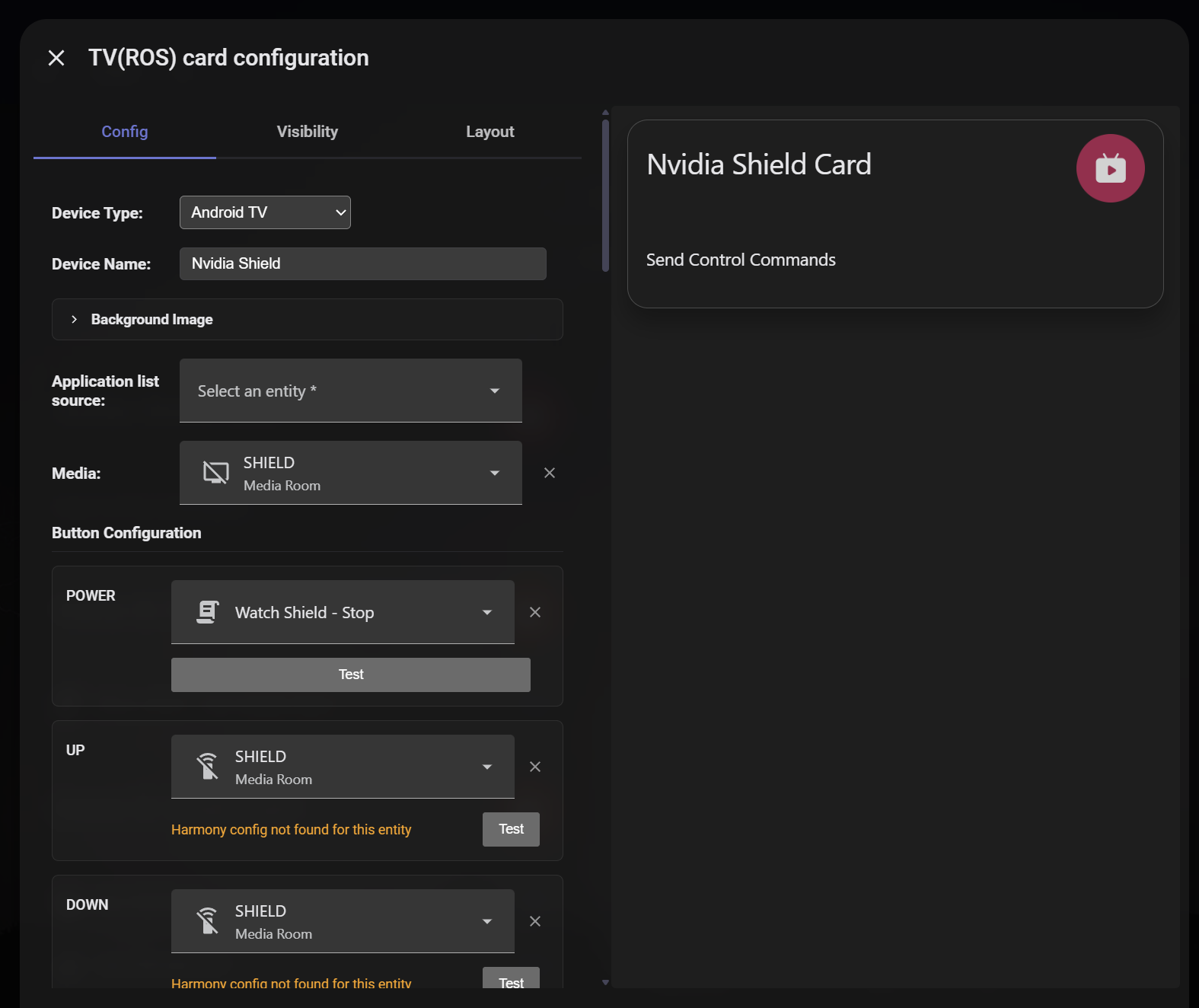
 About. For the Astrion Home (integration) and ROS Card, please update through the HACS store. The latest version for all of these is 1.3.0.
 Integration URL: