I’d like to fire off a script if a ROS card is pressed on the remote. I have 3 cards for my living room, TV, Apply TV, and Chromecast. All three are ROS (TV) cards. Operation at the moment is that I press one of the cards, it will open up the next page, and then I need to press power button, I assume everything is off so I’ve put both off AND on to power on, so it always works if I’ve changed cards.
Ideally:
Assume that the whole system is off all the time
When you press one of the tv cards, it will run launch script for that.
Open up the TV ROS card, power button will now only turn the zone off, because if you have selected that, you’ve already fired the script to turn on.
Also, it would be great to have an Audio Source ros card, so you can still assign volume to the amplifier, power off script. The TV card does work, but for something like my chromecast audio which is just sending audio into the amplifiers optical input, it would be great to be able to hide certain aspects of the ROS card, such as the number entry.
It would also be great to be able to filter sources so that it only shows sources you’d like to show.
Yeah totally, its pretty much allowing the remote to push a state when any ros card is pushed. It would really help to track the “state” of the remote.
Actually, this feature is currently supported! As long as you have our Astrion Home integration installed and your remote is successfully paired, you can achieve this workflow by setting up an automation in Home Assistant. Here’s how:
Steps to set it up:
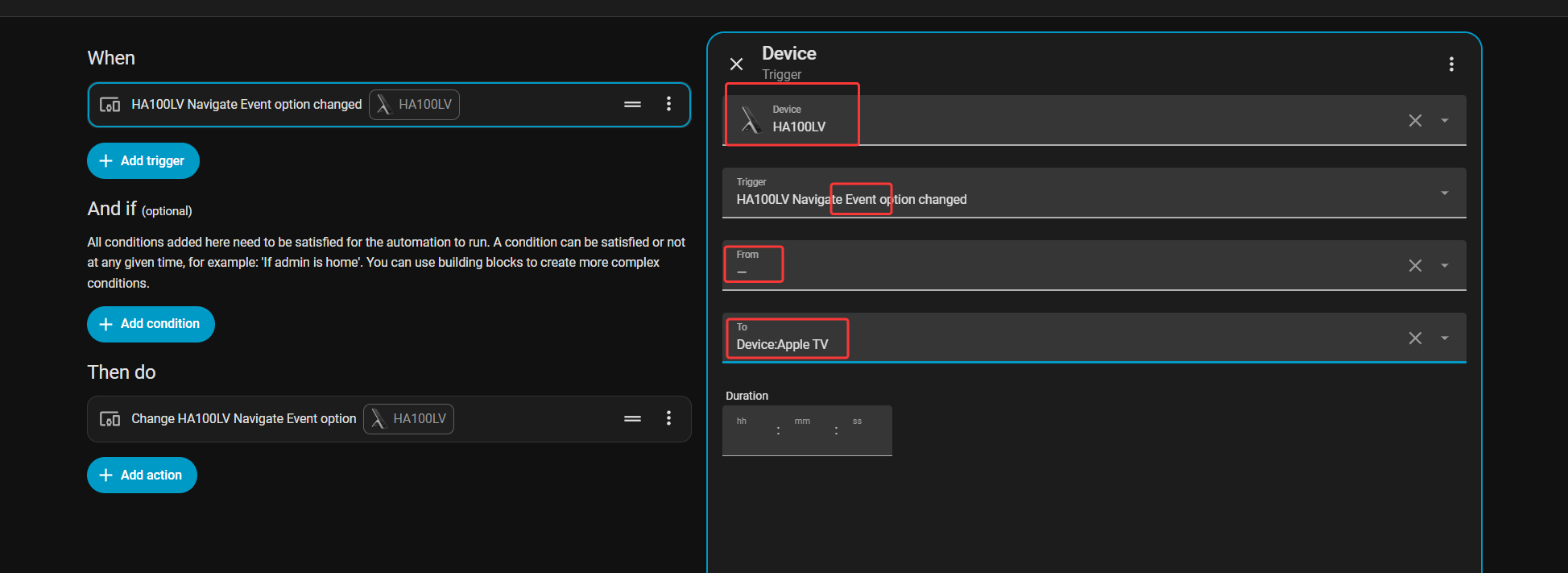
Create a blank automation in Home Assistant.
Configure the “When” (Trigger):
Select your Astrion remote as the device. (If you have multiple remotes, you can distinguish them by their Device ID).
Set the trigger type to “Event”.
Important: In the From field, please make sure to select “-” (empty). In the To field, select the device detail page you want to open.
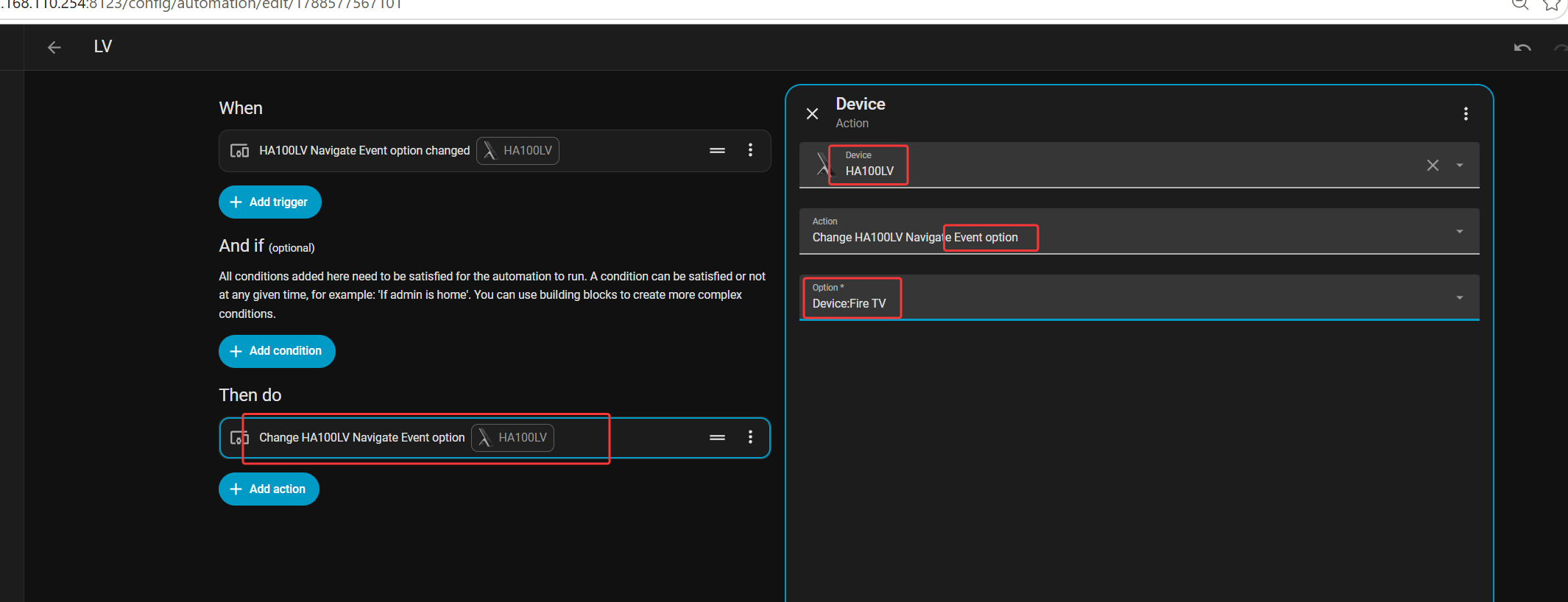
Configure the “Then do” (Action):
If you want to navigate to another page: Select your remote again, set the action type to “Event”, and choose the target device detail page.
If you want to trigger an Activities script: Simply add the script you want to execute in the Then do section.
Goal of this automation: Clicking one card will directly navigate to another detail page (or trigger your activity script).
Tip: Since this configuration requires some logical thinking, please be careful to avoid endless loops (e.g., Page A triggers Page B, and Page B triggers Page A).
We hope this helps! Feel free to let us know if you have any questions while setting it up.
Additionally, regarding the “Audio Source ROS Card”, could you please describe your specific use cases or scenarios in more detail? This would help us analyze and discuss how this card should be applied in real-world situations.
Also, from your perspective, do you think there is any functional overlap between the “Audio Source ROS Card” and Music Assistant? We would love to hear your thoughts on this.
In terms of the Audio Source ROS Card, it would basically be pretty similar to a TV card, perhaps it could be the TV card, but you can turn on and off features, as for a streamer like the chromecase audio, like numbers, app selection, Source, but when it is selected I have the remote configured so that the amplifer recieves volume up and down, mute and unmute. It automatically switches to the Chromecast “TV” card, so that the remotes volume control follows the state of the room.
The nice thing about a TV card is you can assign different functions to the buttons, I want its power button to trigger an off automation, vol up and down to the amp, but jump next and back to skip forward and back on the chromecast audio, but because its only audio it doesn’t need to treat it like an apple tv or a television, so doesn’t need apps, but would be great to show the album art pulled from the chomecast media.
Our physical buttons support script bindings, so you can assign a script to each button. However, triggering automations with the buttons is not currently supported.
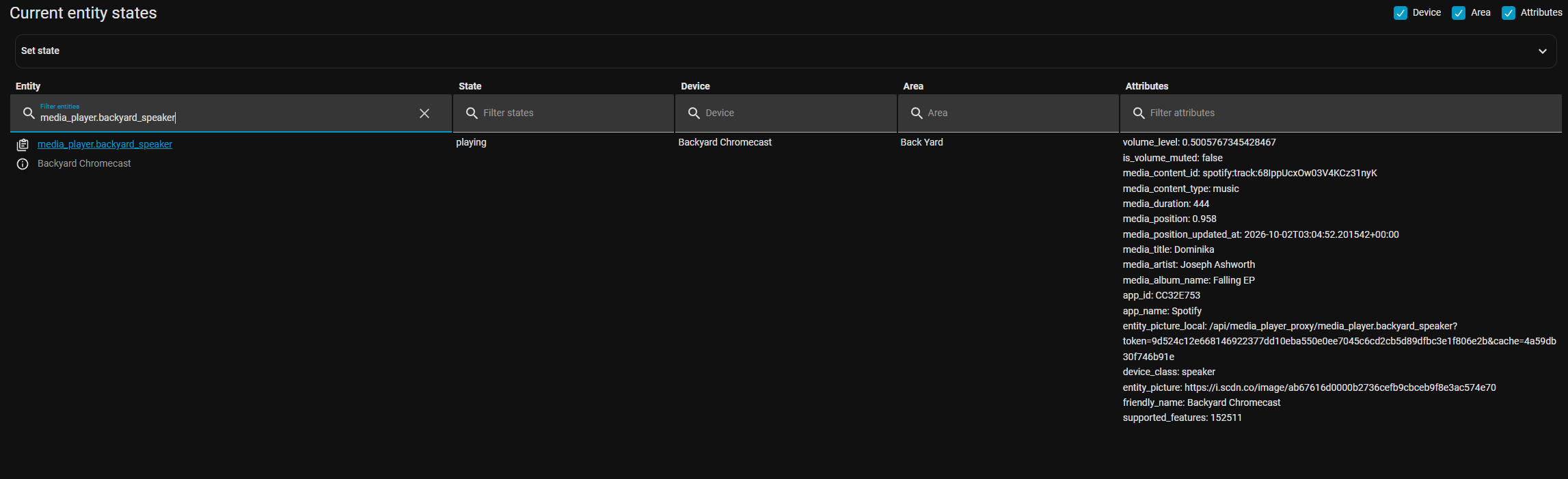
Regarding album art, are you hoping to display it in the media player on the TV card? Album artwork is generally read from the media entity’s attributes. If the entity provides an album-art attribute, we should be able to retrieve and display it.
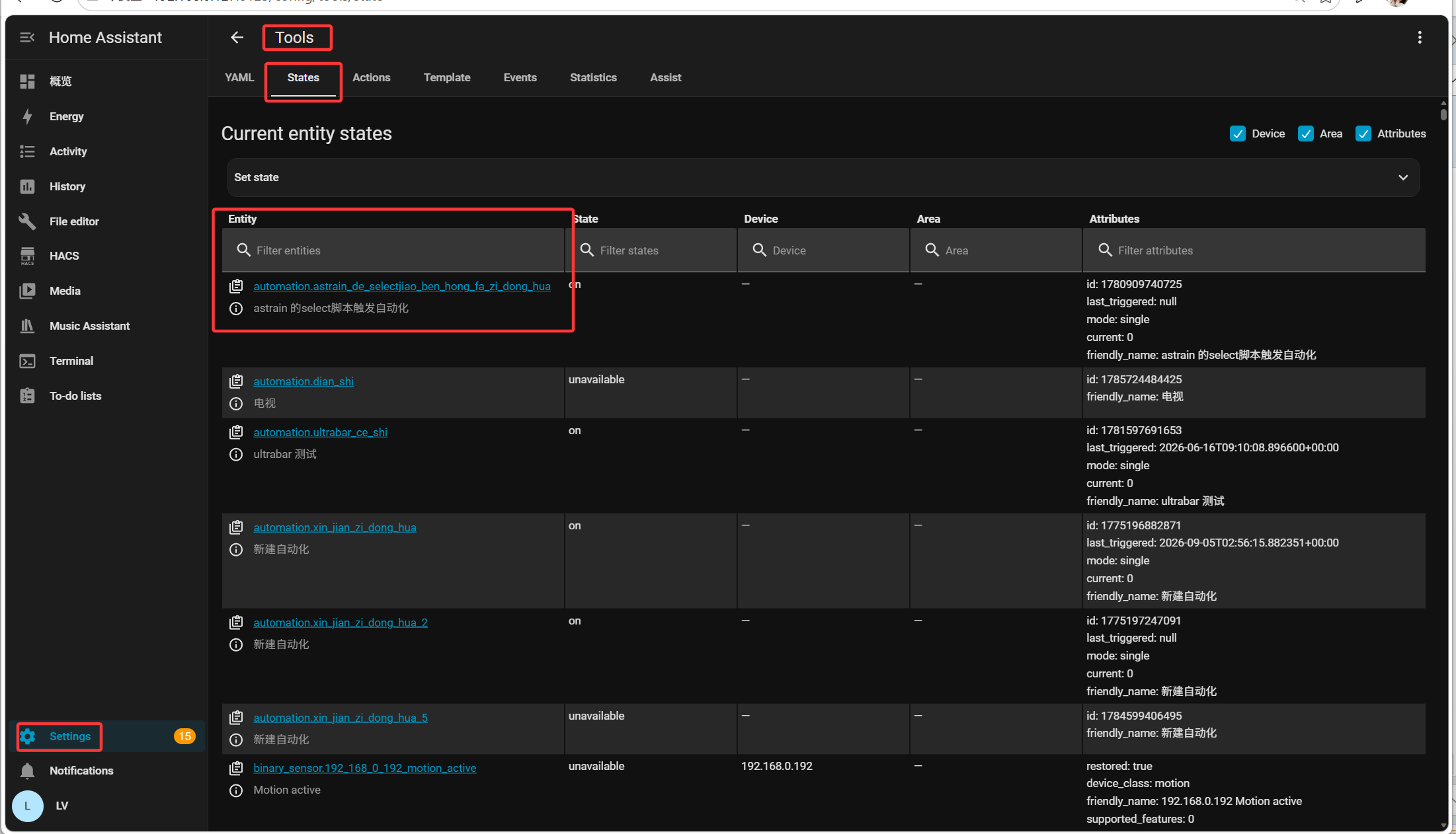
In Home Assistant, please go to Developer Tools → States, find the relevant entity, and send us a screenshot of its attributes so we can take a look. If the entity doesn’t provide album-art information, we may not be able to display it at this time.
Hi Leewei, certainly media art is part of it, and that would be great, but also just having a remote entity that is geared towards audio control, rather then tv/screen.
We’ve checked and confirmed that your media player can display album artwork. Could you let us know where you’re unable to see it?
If you’ve added the media player to a TV card, the card will show a TV icon in the home list rather than the album artwork. This is because the card is primarily designed for the TV feature, and the media player was added later.
 Tip: Since this configuration requires some logical thinking, please be careful to avoid endless loops (e.g., Page A triggers Page B, and Page B triggers Page A).