i’m Tim from Sanytron. We’re exploring deep Music Assistant integration for the Astrion remote.
This is not a launch. Not a pre-order. It’s not usable yet. No ETA.
We’re posting this early because we want to validate demand before investing more. Our internal MA API validation is complete — no technical blockers. Now we want to know what MA users actually need.
Concept video: [link]
__________________________________________________________________
Features
Music Browsing & Playback
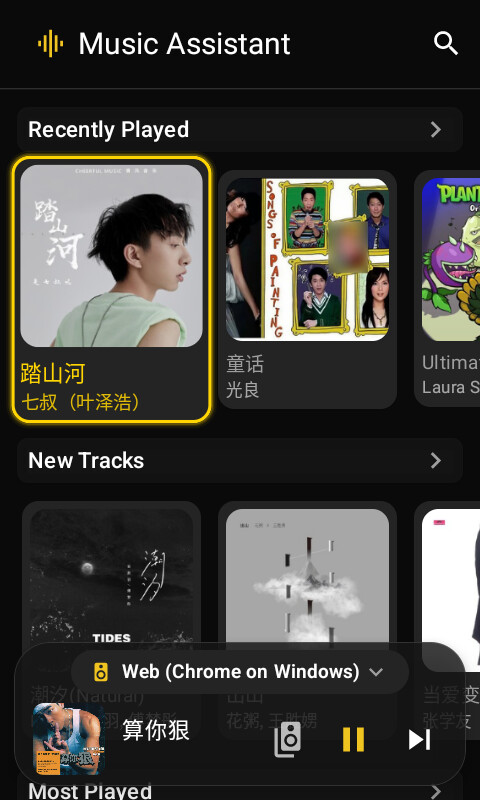
- Aggregated home feed: Recommendations, Recently Played, Recommended Tracks, New Albums, Most Played, Playlists, Favorite Artists, Recently Saved tracks
- Album / Playlist details: Cover grid browsing, long-press for action menu (Play / Play next / Add to queue / Favorite)
- Full playback control: Play/Pause, Previous/Next, Shuffle/Repeat modes, seek bar, volume & mute
- Queue management: View current queue, jump to any track, paginated loading, current track highlighted
Multi-room & Grouping
- Player switching: Quick-switch pill at the top; dialog shows real-time status of every player
- Transfer: Move the current queue to another player with one tap — seamless handoff
- Grouping: One-tap grouping of same-protocol players with synchronized playback; ungroup supported
AI Voice Assistant
- Alibaba Qwen LLM: Natural-language commands — play songs, skip tracks, adjust volume, ask what’s playing
- ASR + TTS: Speech recognition for commands, spoken voice replies
- Sci-fi dark & gold dialog: Breathing gold-speck background, conversational interaction
Deep Remote Integration
- Full DPAD navigation: Arrow keys + OK do everything — no touchscreen needed
- Physical key mapping: Play/pause, track skip, volume, menu, back — each key mapped
- Auto-hiding mini player bar: Slides down when navigating or scrolling, bounces back 1.2s after you stop
Experience Details
- Lyrics screensaver: Kicks in after 30s idle — scrolling lyrics over a breathing gold-dot background
- Fullscreen lyrics: Tap the cover to enter; line-by-line highlighting with scroll positioning
- Sleep timer: 15/30/45/60 minutes, auto-pause when time’s up
- Volume OSD: On-screen overlay when adjusting volume with physical keys
Screenshots & Usage
1. Home
The home screen shows all your music in horizontal grouped rows. The wave icon + “Music Assistant” title at the top left is the settings entry; the magnifier on the right opens search. Each section header (Recently Played, New Tracks, Most Played…) is fully focusable — press OK to open a full grid of that section.
The floating mini player bar at the bottom shows the current player and track. Tap the cover/title to open the player page, or use the play/pause/next buttons directly. The bar slides away while you scroll or navigate, and returns 1.2s after you stop.
Keys: ▲/▼ switch sections,  /
/ move between cards, OK opens details, long-press OK opens the action menu.
2. Now Playing

A large album cover takes center stage, with track title, artist, favorite button and the group icon below. The seek bar supports scrubbing. The bottom control bar (left to right): Shuffle, Previous, Play/Pause, Next, Repeat.
The small handle at the bottom center is the queue grip — swipe up to expand the play queue, swipe down to collapse. On the main player screen, OK = play/pause and / = previous/next track.
Keys: OK = play/pause, / = previous/next, swipe up = open queue.
3. Player Menu
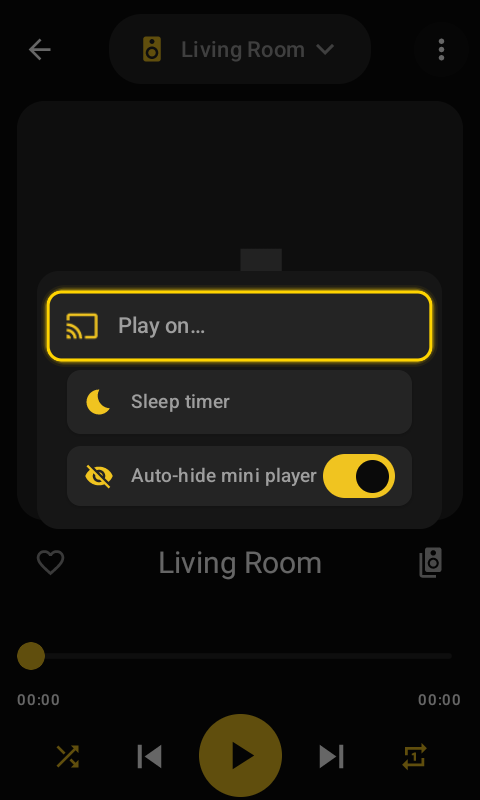
Tap the ⋮ icon at the top right of the player page to open the menu:
- Play on… — Transfer current playback to another player
- Sleep timer — 15/30/45/60 minutes
- Auto-hide mini player — Toggle the mini bar auto-hide behavior
Settings are persisted locally and restored on restart.
4. Player Picker
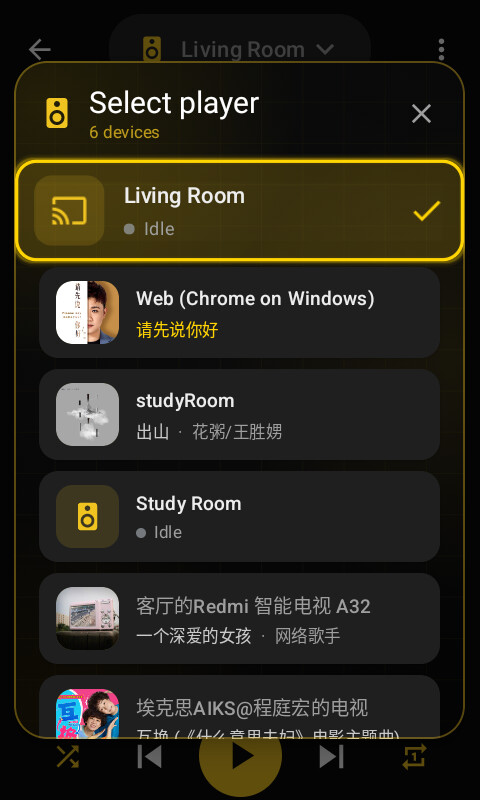
Tap the player pill at the top (e.g. “Living Room”) to open the player list. Each card shows the device name, currently playing track and cover art, updating in real time. The active player is marked with a gold check.
Selecting a player switches the control target — playback, queue and volume all apply to that device.
5. Group Players
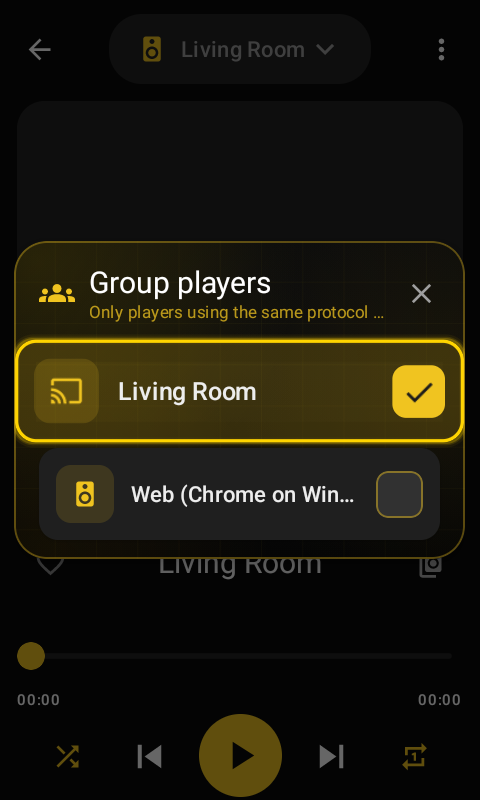
Tap the speaker-group icon next to the title row to open the grouping dialog. Only players on the same protocol are listed. Check devices and confirm to group them for synchronized playback; ungrouping works here too.
6. Search
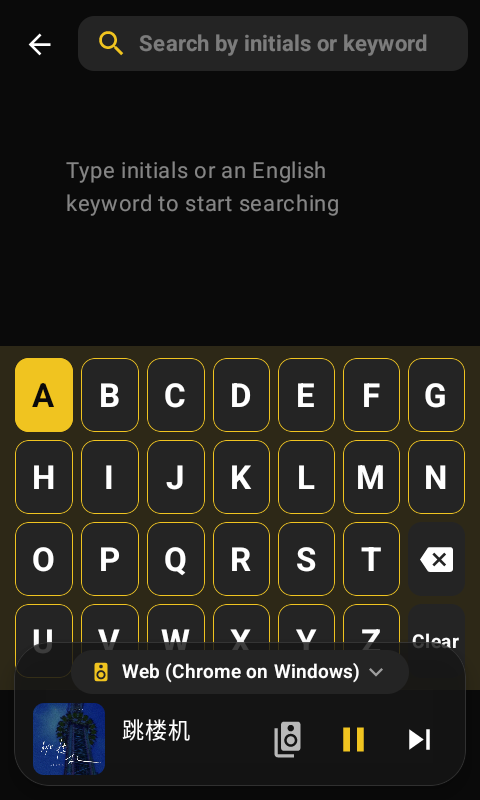
The search page uses a custom A–Z keyboard with a gold-highlighted focus key. Search by pinyin initials or English keywords; results appear live.
Keys: //▲/▼ move focus between letters, OK inputs a letter, F1 = delete, F2 = clear.
7. Play Queue
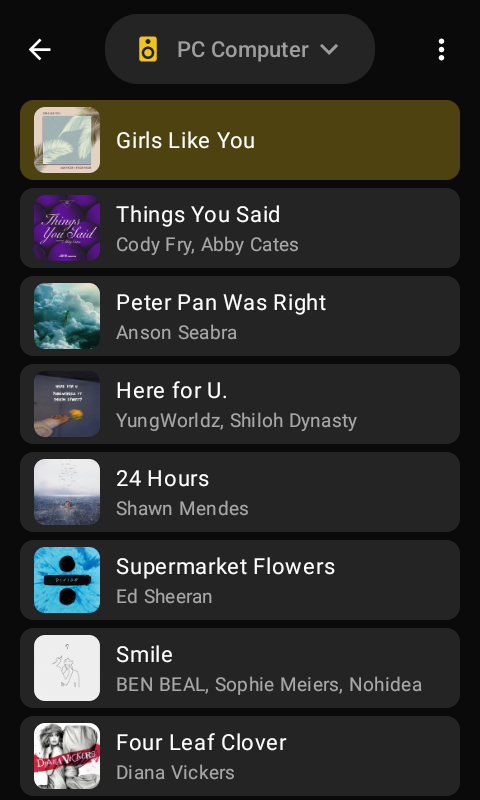
Swipe up on the player page to expand the queue. The current track is highlighted with a gold background. Browse all upcoming tracks and press OK to jump to any of them. The queue loads in pages as you approach the bottom — great for queues with hundreds of tracks.
Keys: ▲/▼ browse tracks, OK jumps to that track.
8. Lyrics Screensaver

After 30 seconds idle during playback (configurable: 15s / 1min / 3min / 5min in settings), the lyrics screensaver kicks in — lyrics scroll line by line over a black background with breathing gold specks, the current line highlighted in gold. Press any key to wake.
9. AI Voice Assistant
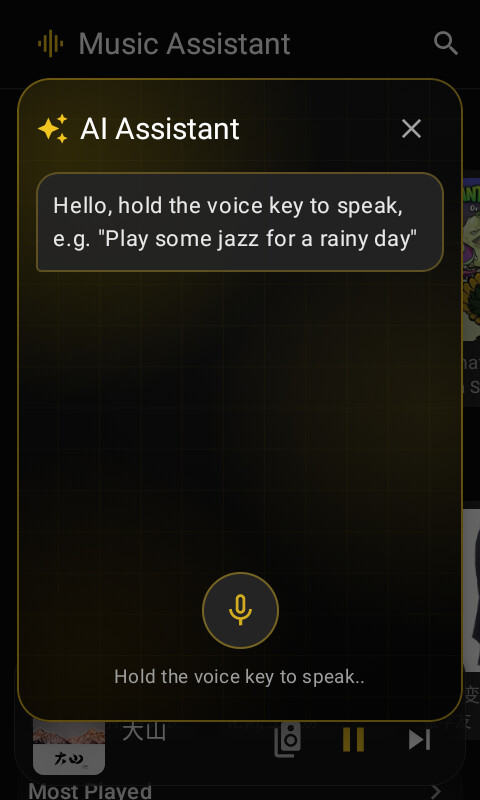
Press VoiceAssistant to summon the AI assistant dialog (powered by Alibaba Qwen). Hold button to talk, release to recognize and execute — natural-language commands for playing songs, skipping tracks, adjusting volume, asking what’s playing, and more. Replies are spoken via TTS, and search results appear as focusable cards you can play directly.
10. Settings
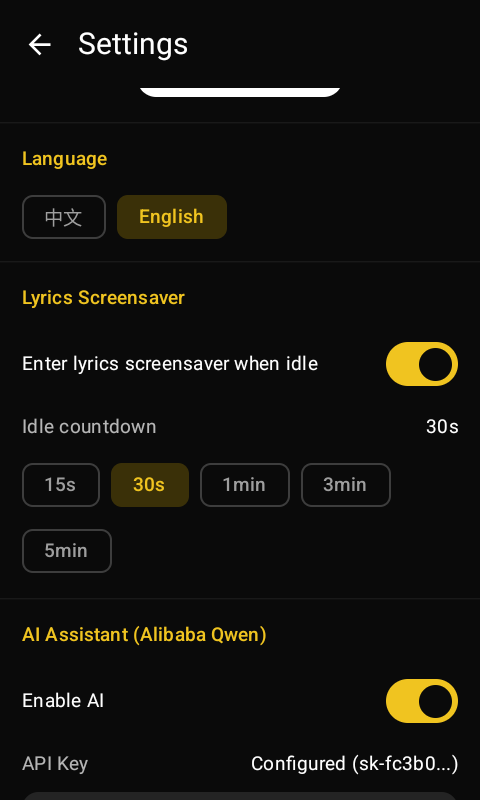
The settings page includes:
- Lyrics Screensaver — Enable/disable and idle countdown options
- AI Assistant (Alibaba Qwen) — AI toggle and API Key configuration
- Server — Music Assistant server connection status and address
- PC Web Interface — A LAN URL plus QR code, so you can configure the server address, token and AI API key remotely from a PC browser
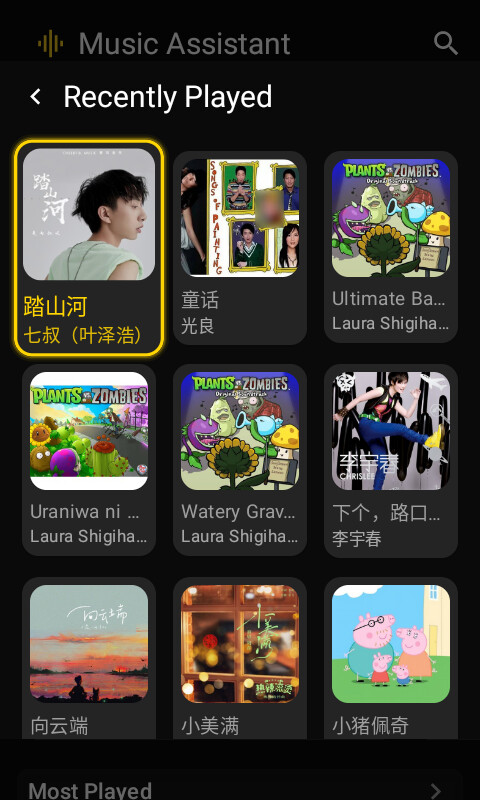
11. View All
Focus any section header on the home screen and press OK to open a fullscreen 3-column grid of everything in that section. Tap the back arrow at the top left, or press F5, to return home.
Keys: //▲/▼ move through the grid, OK opens details.
Quick Start
Requirements
- Music Assistant Server (running on your LAN)
- HA100 remote
- Alibaba Qwen API Key (optional, for the AI voice assistant)
