Hi fellow HA hackers and power users!
As we continue refining the user experience and underlying RemoteOS for our Astrion smart remote, our internal team stumbled upon a very interesting debate regarding ergonomics and muscle memory on a 3.1" screen remote.
When controlling smart home devices—especially AV setups, lighting, and climate—we’ve noticed that users naturally split into two very distinct, yet equally logical interaction habits.
We’d love to gather feedback from the community to help us optimize the default button mapping and focus engine for our upcoming RemoteOS update.
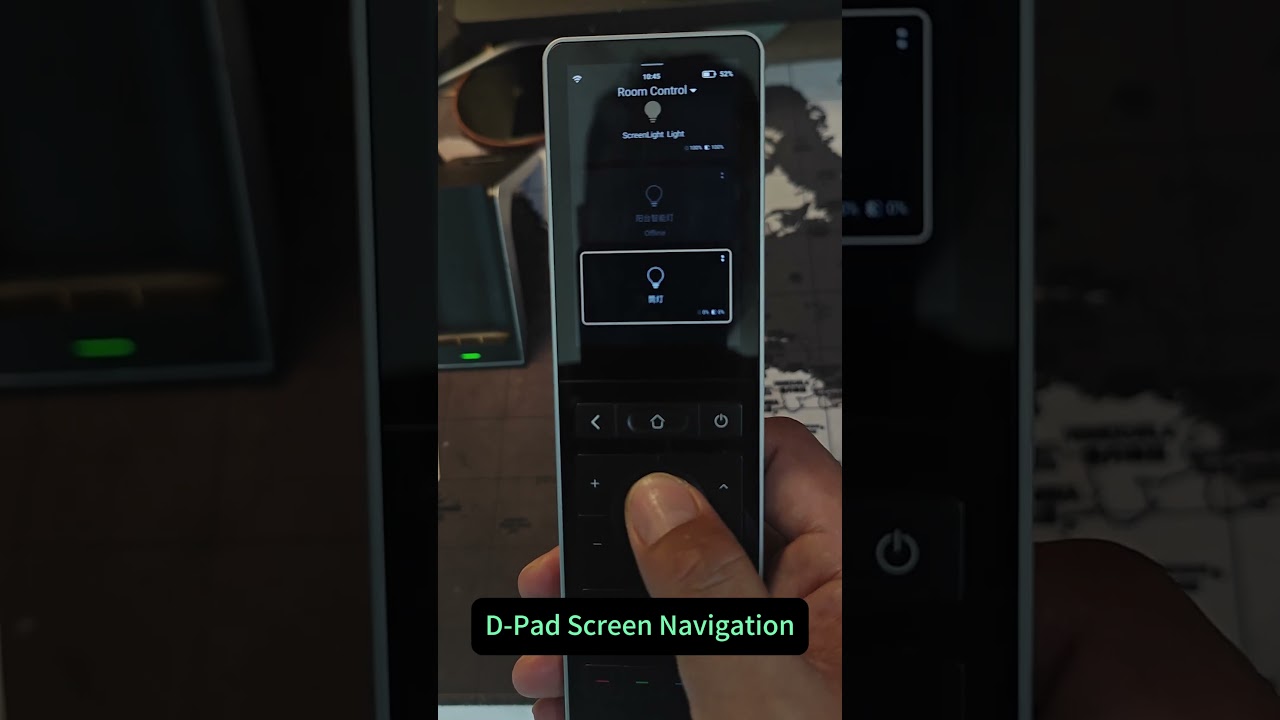
 Mode 1: DPAD Navigation & Control
(Strongly bound to the remote’s screen)
-
How it works: You use the physical D-Pad (Up/Down/Left/Right) to navigate the highlight box across the Lovelace/RosCard UI on the remote’s small screen, then press OK to select or trigger an action.
-
Best used when:
-
Operating the remote in a pitch-black room where you don’t want to touch the screen.
-
Holding the remote single-handedly at the very bottom, where your thumb naturally rests right on the physical D-Pad.
-
You prefer a pure, tactile button-only browsing experience without leaving fingerprints on the glass.
-
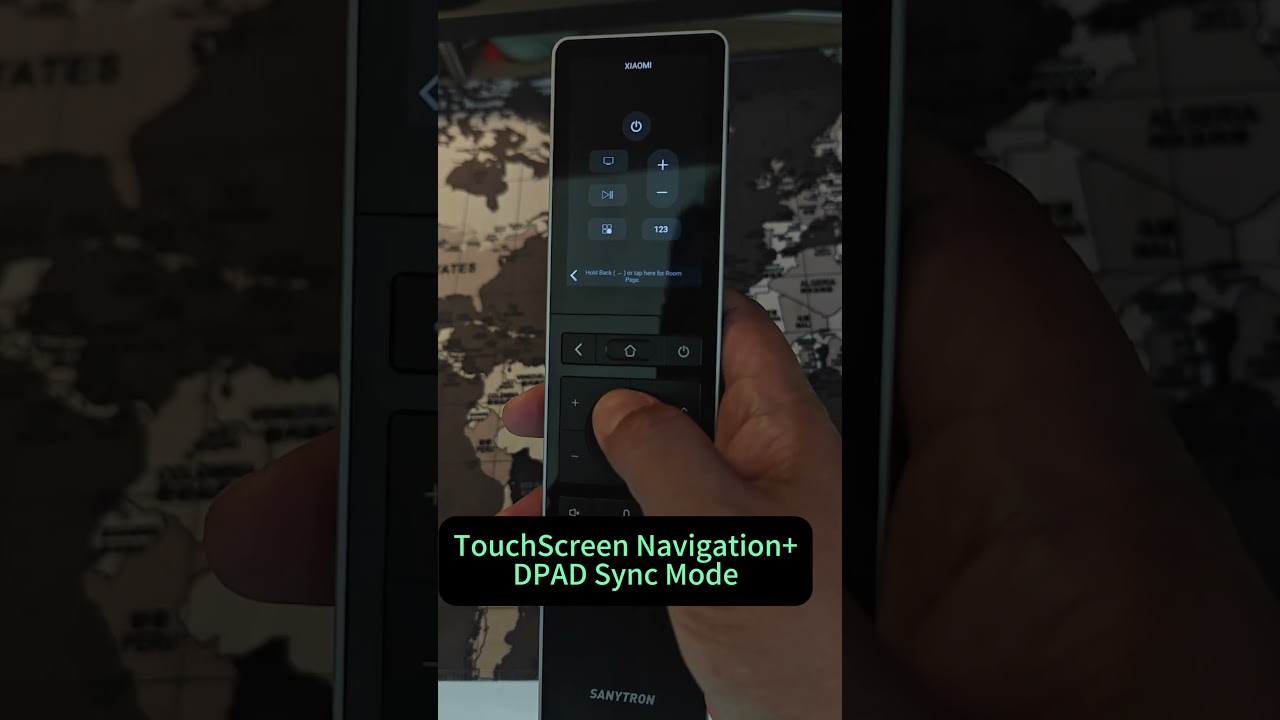
 Mode 2: TouchScreen Navigation + Hardware Control
(Decoupled/Context-aware Hardware Sync)
-
How it works: You use your finger to tap or swipe directly on the 3.1" touchscreen to pick a card/device (e.g., tapping “Living Room TV”). The moment it’s selected, the physical D-Pad, Volume, and Transport keys instantly sync and morph into the dedicated physical controller for that specific device. You then raise your eyes to the big TV screen and blind-control it seamlessly.
-
Best used when:
-
You find it much faster to tap the touchscreen once rather than pressing the D-Pad 3 times just to reach a card.
-
You want your physical buttons to act like a traditional, dedicated TV/Receiver remote control while keeping your eyes on your living room’s main display.
-
 Community Poll
Which mode aligns better with your daily usage and muscle memory?
-
[ Option A ] Mode 1: DPAD Navigation & Control (I want the physical D-Pad to control everything on the remote’s screen).
-
[ Option B ] Mode 2: TouchScreen Navigation + Hardware Control (Touch for fast selection on the small screen, physical keys for instant blind-control of the device).
-
[ Option C ] Both! (Mode 2 Default + Mode 1 Toggle) (Default to Mode 2 for speed, but allow a long-press or hotkey to toggle the D-Pad back to screen cursor navigation).
 Discussion Question:
Beyond voting, we’d love to hear in the comments: What type of devices do you interact with most on a handheld remote? (e.g., Heavy AV Media / Lights & Scenes / Climate & Shades?)
Your feedback will directly influence the default key-handling architecture in our next firmware build. Thanks for helping us build the ultimate HA remote! 