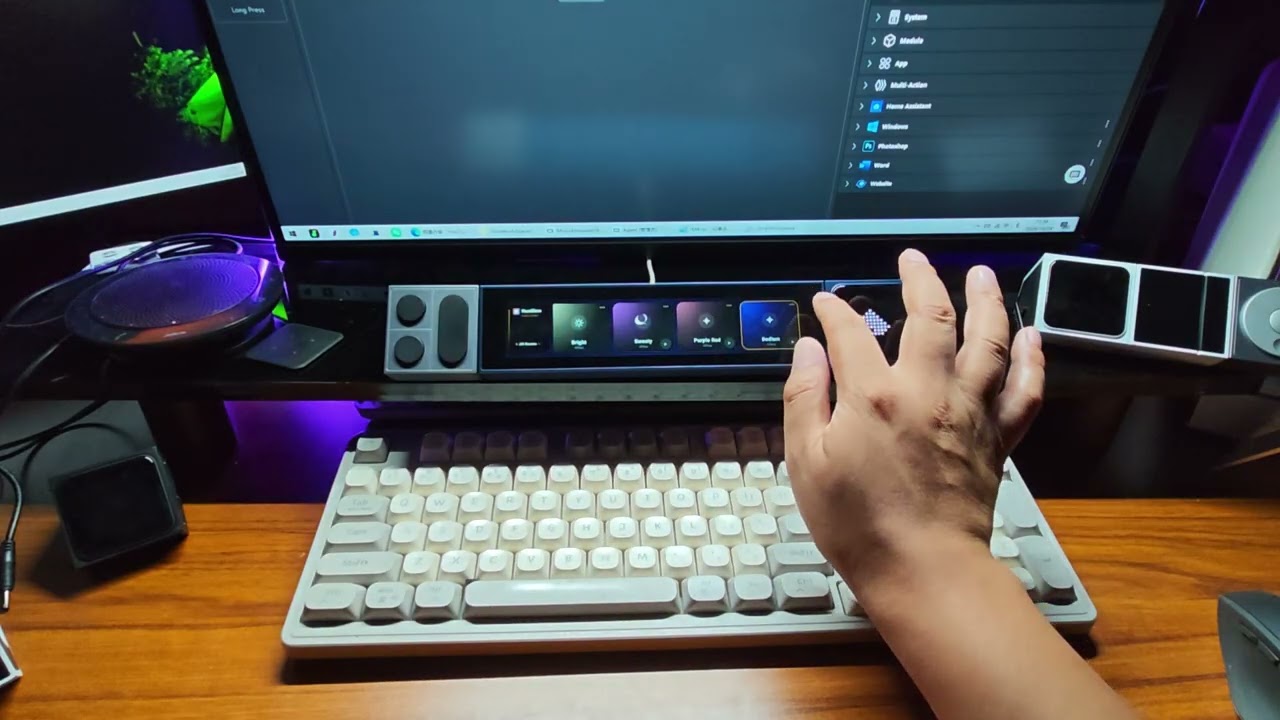
A Philips Hue control center built for UltraBar bar-screen devices (1424 × 280 ultra-wide display). It connects to a Hue Bridge on your LAN and lays the rooms and scenes out as a row of large cards: switch scenes in one tap, fine-tune brightness and color per light, and keep everything in sync in real time — plus a scene-matched ambient screensaver and LineOS plugin support.

 Full illustrated user guide: docs/User-Guide.md (Chinese; PDF version).
Features
- Bridge pairing wizard — auto-discovers the bridge on the LAN, with manual IP entry as a fallback; press the physical button on the bridge once and pairing completes, then rooms, scenes and lights load automatically.
- Scene card wall — a horizontal card flow with the scene name and its room centered; each card carries a soft glow in that scene’s actual light color in its top-left corner; the brand card can pin the list to a single room.
- One-tap scene activation — tap a scene card to recall it; dynamic scenes expose a play button in the bottom-right corner that keeps colors flowing, and a second tap returns to the static snapshot.
- Three-page navigation — swipe right from home for the utility page (All Lights / All Off / room entries), swipe left for settings; the three pages never mix.
- Per-light and per-room control — tap a light card to toggle it; press and hold for 0.5 s, then drag up/down to set brightness with a progress bar that fills the whole card; room cards support the same drag gesture for the whole room.
- Light detail page — power, brightness and RGB hue as three side-by-side cards with extra-thick sliders and enlarged thumbs, sized for bar-screen touch input.
- Real-time sync — a long-lived SSE connection to the bridge mirrors changes made from the Hue app or physical switches instantly; a 30-second heartbeat tracks bridge availability.
- Ambient Saver — after a scene stops and the terminal is idle (3 / 10 / 30 s, selectable), the whole screen becomes a pulsing-light screensaver that follows the scene’s colors; near-black background, fully opaque, so the bar-screen bezel fades away. Toggle and Preview from the settings page.
- LineOS plugin — discovered and launched by the LineOS host automatically, exposing three standard actions, so lights can be controlled even when the app UI is not running.
Screenshots
| Scene home | Active scene (dynamic scenes show a play button) | Utility page: All Lights / All Off / Rooms |
|---|---|---|






Getting started
- Install the APK (in-place upgrade keeps pairing and settings, no uninstall needed).
- Make sure the terminal and the Hue Bridge are on the same LAN.
- On first launch, follow the pairing wizard: pick the discovered bridge, then press the round button on the bridge and wait for it to finish.
- Back on the home screen, tap the brand card to pin a default room (only that room’s scenes are shown).
Controls
| Gesture | Action |
|---|---|
| Swipe left / right | Move between the utility page, scene home and settings (start the swipe on the brand card or an empty area) |
| Tap a scene card | Activate that scene; the active card gets an amber outline |
Tap  at a card’s bottom-right at a card’s bottom-right |
Start / stop color flow of a dynamic scene |
| Long-press a scene card | Open the list of lights in that scene |
| Tap a light card | Turn the light on / off |
| Press and drag a light card vertically | After 0.5 s a full-card brightness bar appears; drag up/down to adjust |
| Tap ⋯ at a card’s top-right | Open the light detail page (power / brightness / hue) |
| Tap the back strip on the left | Go back one level |
| All Off | Turn off every light at once |
The hue slider on the detail page only sends a command when released; while dragging it is a local preview, which keeps high-frequency requests away from the bridge.
Settings page
- Hue Bridge — bridge IP and connection state (a red dot appears at the top-right of the home screen when disconnected)
- Reset Pairing — forget the current bridge and return to the pairing wizard
- Ambient Saver — toggle the screensaver, Preview it immediately, and choose the idle timeout: 3 s / 10 s / 30 s
- Version info — current app version
LineOS plugin
HueGlow registers as a standard LineOS plugin and is discovered and launched by the host (no need to open the app UI):
| Action | Parameters | Description |
|---|---|---|
hue.scene.activate |
scene |
Activate the given scene |
hue.light.toggle |
light |
Turn a single light on / off |
hue.light.set |
light, brightness?, colorTemp?, colorX?, colorY? |
Set brightness / color temperature / color of one light |
Version
v1.1
- Three-page layout: utility page (All Lights / All Off / rooms), scene home, settings
- Light detail page with three side-by-side cards (power / brightness / hue) and bar-screen-sized touch targets
- Ambient Saver pulsing-light screensaver with selectable timeout and instant preview
- LineOS plugin support (scenes / light toggle / light adjustments)
- App icon switched to a single nodpi PNG, fixing launcher-upscaling blur
License
For use with UltraBar devices only.