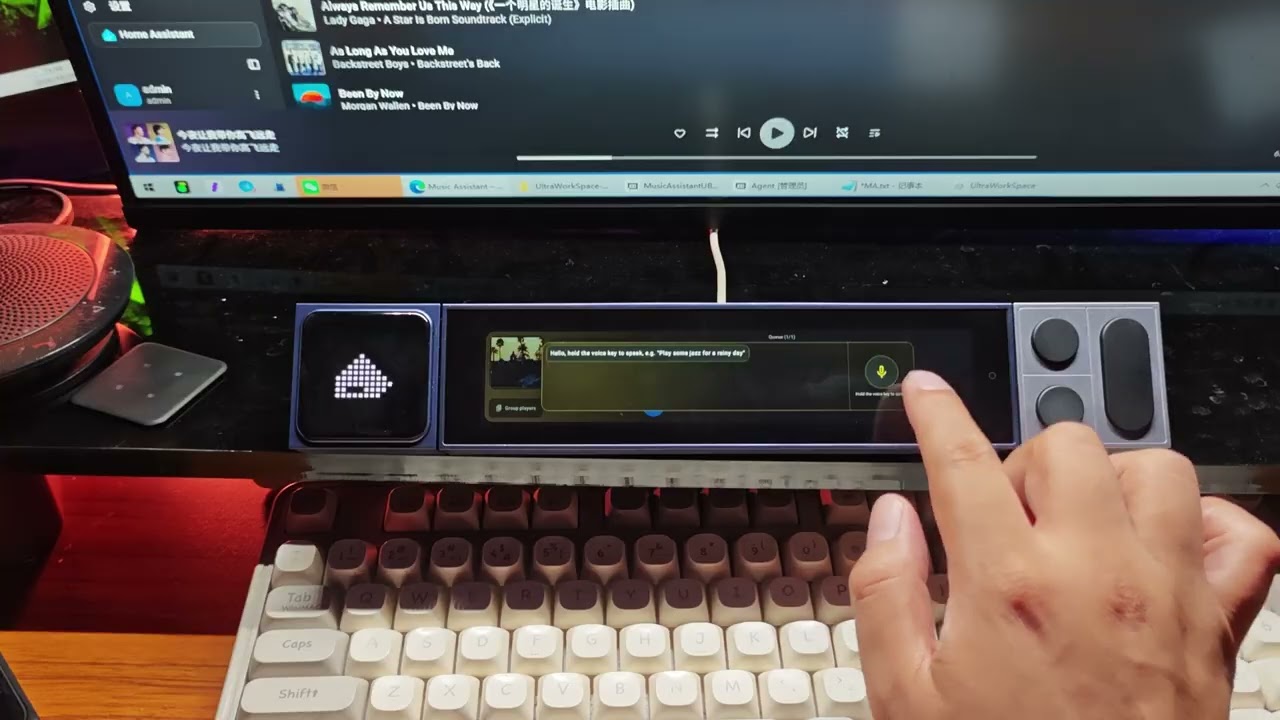
An Android controller built for the Music Assistant smart system,
optimized for the Ultrabar.

Feature Highlights
- Bar-display-first UI — every screen is optimized for the 1424 × 280 px landscape bar.
- Multi-player switching — swipe horizontally on the left panel to switch speakers, or tap the dropdown pill at the top to pick one instantly.
- Player grouping — join multiple speakers into a synchronized group or ungroup them, available from both the home screen and the detail screen.
- Category-driven home screen — 9 browse sections (recently played, recommendations, new tracks, most played, albums, more albums, playlists, artists, recently favorited), switched via the sliding category entry card on the left or the title pill at the top right.
- Debounced volume slider — dragging only updates the local thumb; a single WebSocket event is sent on release, and the dialog auto-closes after 5 seconds of inactivity.
- AI voice assistant — tap the floating gold microphone to start speech recognition; a beep plays when the ASR stream is actually established.
- Lyrics screensaver — three animations (fly-in / wave / fade), three font sizes, configurable idle timeout; the radial gradient background is sampled from the current album art.
- Web configuration from a PC — open the address in any browser to set the server connection, AI models and voice, language and screensaver options; the page auto-closes 1 second after saving.
- Restores the last player on restart — after reconnecting to MA, the app automatically returns to the speaker it was controlling.
- Unified gold theme — dialogs, chips, switches, outlines and the AI mic button all use gold
#FFD400on a deep black#0A0A0Abase.
Quick Start
Connecting to Music Assistant
MA Mate uses the Music Assistant 2.x WebSocket protocol. On first launch you’ll see a connection page with a QR code — scan it, or fill in the fields manually:
| Field | Description |
|---|---|
| Host | LAN IP of the MA server, e.g. 192.168.31.239 |
| Port | 8095 by default |
| Token | Long-lived JWT, generated in MA → Settings → Token |
| API key | Optional, only required by some providers |
The device runs a built-in HTTP configuration service that can be reached from any PC browser on the same LAN:
http://<device-ip>:<port>/
When running as a LineOS host plugin the port is allocated dynamically by the host (see ConfigWebServer.lastBoundPort); when the app runs standalone it scans upward from 8765 for the first free port (up to 50 attempts).
PC Configuration Page
MA Mate embeds NanoHTTPD to serve a full configuration UI. Open the address above in a browser on the same LAN to configure:
- Server connection — host / port / token / API key
- AI voice assistant — enable switch, LLM model, ASR model, TTS model, TTS voice
- Display & screensaver — language, screensaver timeout, lyric font size, lyric animation
After clicking Save, the page shows “Saved successfully” and closes automatically after 1 second. The app re-establishes the WebSocket on the next heartbeat, so settings take effect immediately.
User Guide
Home Screen
The home screen has three areas:
| Area | Function |
|---|---|
| Left player card | The current speaker — album art, track info, playback controls, progress bar, speaker dropdown. Swipe horizontally on the cover to switch speakers quickly; tap the gold pill dropdown to open the full selector. |
| Right category card row | A horizontally scrolling LazyRow of the current category; the gold label at the top shows the category name (tap it to open the category dialog). |
| Gold microphone at bottom right | The floating gold mic button that opens the AI voice assistant dialog. |
Switching Players
MA Mate offers two ways to switch the controlled speaker:
1. Cover swipe (home screen) — place a finger on the album cover of the left player card and swipe left; the whole card slides away and the next player’s cover and info replace it immediately. The small dots under the cover show which player you’re on. Keep swiping to cycle through all available speakers.
2. Gold pill dropdown (home + detail) — tap the gold pill above the track title to open the full player list. Each row shows the name, availability and power state; tap a row to switch instantly and the pill label updates accordingly.
Neither method clears the category card row on the right — your browsing context is preserved.
Player Grouping
Player grouping lets multiple speakers play the same track in sync. Entry points:
- Home → bottom of the player card — the
Group playersbutton under the cover opens the grouping dialog (gold theme, consistent with other dialogs). - Detail → control row — the same grouping dialog is also available on the Playback Detail screen.
The dialog lists all known speakers with a checkbox on the right of each row:
- Check to add to the group
- Uncheck to remove from the group
- At least one speaker must remain selected
- Tap Apply to send the grouping request to MA (command
player_queues/group_players) - Tap Ungroup all to dissolve the group and let every speaker play independently again
Grouping state is stored by the MA server; the app only reflects it, so groups survive reconnections.
Playback Detail Screen
Tap the large cover on the left player card on the home screen to open the playback detail screen.
- Player pill — positioned directly above the track title (same as the home screen), gold outline with a translucent background.
- Progress bar + volume on one row — the progress bar takes the middle, the volume icon sits at the far right with 14 dp of visual spacing. Tapping the volume icon opens the slider dialog, which auto-closes after 5 seconds of inactivity; dragging resets the timer.
- Control row — previous / play-pause / next / repeat / shuffle / favorite / transfer. Buttons are 48–64 dp so they stay reliably tappable on the small bar form factor.
- Playlist on the right — the full queue using titleMedium / bodyMedium type. Tap an item to jump to it, long-press for more actions.

Switching Album Categories
MA Mate has 9 browse sections; which ones actually appear depends on the content of your MA library that day:
- Recently played
- Recommended tracks
- New tracks
- Most played tracks
- Albums
- More albums
- Playlists
- Favorite artists
- Recently favorited
Two ways to switch:
1. Category entry card — drag the home card row all the way to the left (until the first card is fully exposed at x = 0) and release; a gold-outlined category entry card slides out from the left with an Apps icon and a “Select category” label. Tap it to open the category dialog. It retracts automatically after 5 seconds of inactivity.
2. Category title at the top right — the gold pill label at the top right of the home screen shows the current category name with a dropdown arrow; tapping it opens the same category dialog.
After selecting a new category, the card row is re-rendered immediately using loadBrowseData(force=true), bypassing the 30-second cache to pull fresh data from MA.

AI Voice Assistant
MA Mate talks to MA through the ASR + TTS channels built into the Music Assistant server. The AI button is the floating gold microphone available on both the home and detail screens.
Enabling AI — open the PC configuration page and set:
| Field | Example |
|---|---|
| AI voice assistant | Enabled |
| LLM model | qwen2.5-7b |
| ASR model | qwen-audio |
| TTS model | cosyvoice-v2 |
| TTS voice | FunAudioLLM/CosyVoice2-0.5B:alex |
Click Save; the page closes automatically and the gold AI button appears on the home screen after the next heartbeat.
Talking to MA
- Tap the floating gold microphone → the AI dialog opens with a large pulsing gold microphone in the center.
- Wait for the beep — that’s the cue that the ASR stream is ready; start speaking then.
- Natural-language commands MA understands include: “play some jazz for a rainy day”, “turn the volume down”, “stop playing”, “what’s playing now”.
- MA Mate sends your speech to ASR → the transcript appears in the “Heard” area → the text goes to MA → MA returns an intent and synthesizes speech with TTS, while the text appears in the “Reply” area.
- Tap the microphone again to keep talking; the dialog stays open.
- Tap outside the dialog to close it.

Lyrics Screensaver
After idle_sec without touch input on any screen, MA Mate switches to a full-screen lyrics screensaver showing the lyrics of the current track.
What the screensaver shows
- Album art pinned to the left edge of the screen (no padding, no border).
- A radial gradient background sampled live from the album art — the color changes with every track.
- Lyrics centered, three lines visible at once.
- The middle line is enlarged and uses your chosen animation:
- Fly-in — each lyric line pops in from the bottom
- Wave — lyrics bob up and down
- Fade — smooth cross-fade when lines change
- Tap anywhere to wake up and return to the UI.
Configure on the settings page — the language / screensaver column:
| Option | Values |
|---|---|
| Enable screensaver | On / Off |
| Idle timeout | 15 s / 30 s / 1 min / 3 min / 5 min |
| Lyric font size | Large / Medium / Small |
| Lyric animation | Fly-in / Wave / Fade |
Trigger the screensaver manually for testing or screenshots:
adb shell am broadcast -a com.mamate.app.action.FORCE_SCREENSAVER

Settings Page
Two ways to reach settings:
- Press the physical Back button on the home screen → exit confirmation dialog → tap Settings (short-circuits straight into settings without triggering the exit flow).
- After the screensaver appears, tap to wake → press Back again → exit dialog → Settings.
The settings page is laid out in three equal-width columns, each a translucent dark container with a gold outline (1 dp, 35% alpha), a small gold heading, and gold-themed chips / switches:
- PC web configuration — config service address (tap to copy), explanatory text, QR code.
- Language / screensaver — Chinese / English chips, screensaver switch, idle timeout, lyric font size, lyric animation.
- Actions — Disconnect (red outline + red icon + red text), which clears the WebSocket and returns to the connection page.

Exit Flow
Pressing the physical Back button on the home screen opens the exit confirmation dialog:
- Cancel — close the dialog.
- Exit — close the app and remove it from the recent task stack (
finishAffinity). - Settings — go straight to the settings page (skipping the exit flow).
Pressing Back again while the dialog is open quits the app immediately — a one-press escape in emergencies.

Volume Control
Two ways to adjust volume:
Single-speaker volume (detail screen) — tap the volume icon at the far right of the progress row to open the slider dialog:
- The slider ranges 0–100 and spans the full dialog width.
- A mute switch sits at the top.
- Auto-closes after 5 seconds — any drag, press or tap resets the timer.
Group volume — when speakers are grouped, the slider dialog shows the group name and dragging applies the same volume to all members at once. After ungrouping, each speaker returns to its own previous volume.